Your iPhone can be more than a phone, a social feed, and a remote control. With the right IPTV service and player app, it can become a portable screen for live TV, major sports, movies, series, and local channels whether you are on the couch, traveling, or waiting between appointments.
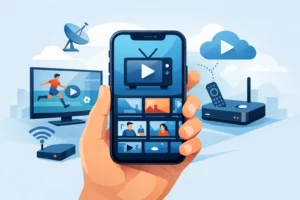
So, can IPTV work on iPhone? Yes. iPhones support IPTV through compatible apps that connect to your subscription using playlist details, portal credentials, or a provider-issued login. The setup is usually quick, but the experience depends on your internet connection, app choice, and the quality of the IPTV provider behind the stream.
Can IPTV Work on iPhone Without Extra Hardware?
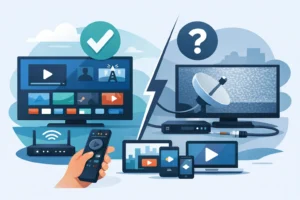
Yes. You do not need a Firestick, IPTV box, or smart TV to watch IPTV on an iPhone. Your phone only needs a current version of iOS, a stable internet connection, and an IPTV player that supports your provider’s login method.
Most services deliver access in one of three ways: an M3U playlist URL, Xtream Codes-style credentials, or a dedicated app login. The player app reads that information and organizes the available live channels, video-on-demand library, TV guide, favorites, and categories on your iPhone.
That means you can watch live NFL, NBA, NHL, UFC, news, international channels, movies, and series from one place instead of moving between cable apps and separate streaming subscriptions. For households that want more screen flexibility without another cable box rental, that is a major advantage.
The trade-off is screen size. An iPhone is excellent for personal viewing, catching a game while away from home, or keeping up with a show in bed. For a full living-room experience, you may prefer to cast to a compatible TV or use AirPlay when your setup supports it.
What You Need to Watch IPTV on an iPhone
The process is simple, but a few details make the difference between a smooth stream and repeated buffering. Before you start, make sure you have the following:
- An active IPTV subscription from a provider that supports iOS-compatible players
- An iPhone with enough available storage and an updated iOS version
- A reliable Wi-Fi connection or a strong unlimited mobile data plan
- An IPTV player app that accepts your provider’s playlist, portal, or login details
Your provider should send clear activation information after purchase. Instant activation is useful because it lets you add your account to the app and begin watching without waiting for a box to arrive or a technician to visit.
If you are using mobile data, remember that HD and 4K streams can consume data quickly. Wi-Fi is the better choice for long games, movie nights, and binge-watching. If cellular is your only option, use a lower stream quality when available and monitor your data usage.
How to Set Up IPTV on iPhone
Start by installing a reputable IPTV player from the Apple App Store. Apple’s app policies can change, and individual apps may appear, disappear, or offer different features over time. That is why it is smart to choose a provider that can guide you toward a compatible option rather than locking you into one app.
After you install the player, open it and select the login method provided with your IPTV subscription. If you received an M3U URL, choose the playlist option and paste the full address exactly as supplied. If you received a server URL, username, and password, choose the Xtream Codes or API login option and enter each field carefully.
Names and credentials are case-sensitive in many apps. A missing character, extra space, or incorrect server address can stop the playlist from loading. Copy and paste whenever possible instead of typing long URLs by hand.
Once the account loads, give the app a minute to download channels, categories, logos, and guide data. Then create a favorites list for the channels you watch most. This saves time when you want to get directly to live sports, local news, kids’ programming, or your preferred movie channels.
For viewers who want a high-volume package with flexible device access, PureVisionHD can provide subscription details designed for compatible IPTV setups. Choose a plan with enough simultaneous connections if family members will watch on more than one screen at the same time.
Best iPhone Settings for Better IPTV Streaming
A good IPTV service matters, but your iPhone settings and network still affect playback. If a channel takes too long to open or buffers during a game, test your connection before assuming the stream is the problem.
At home, connect to 5 GHz Wi-Fi when your router offers it and you are close enough to get a strong signal. It is often faster and less crowded than 2.4 GHz Wi-Fi. If your signal is weak in the room where you watch, moving closer to the router or using a mesh Wi-Fi system can make a noticeable difference.
Close bandwidth-heavy apps when streaming a big event. Video calls, cloud backups, game downloads, and multiple 4K streams on the same network can compete for bandwidth. Restarting the IPTV player and reconnecting to Wi-Fi can also clear temporary playback issues.
Keep your app updated, but do not update in the middle of a major event if everything is already working well. New app versions can improve stability, but occasional interface changes may require you to sign in again or adjust player settings.
Watching IPTV on a Bigger Screen From Your iPhone
An iPhone does not limit you to a small display. Depending on the player app and your TV equipment, you may be able to send video to a larger screen through AirPlay or screen mirroring.
For AirPlay, your iPhone and compatible TV or streaming device generally need to be connected to the same Wi-Fi network. Open the stream in your IPTV app, look for the AirPlay control if the app includes one, and select your television. Some apps handle direct casting better than basic screen mirroring because the video is sent more efficiently.
Not every IPTV app supports every casting feature. If you get audio without video, a black screen, or inconsistent playback, try another player approved for your subscription setup. In some cases, using IPTV directly on an Apple TV, smart TV, or streaming box may be more reliable for daily big-screen viewing, while the iPhone remains your travel and backup device.
Common IPTV Problems on iPhone and Quick Fixes
The most common problem is a playlist that will not load. First, check that your subscription is active and that you entered the correct server address and credentials. If the details are correct, force-close the app, reopen it, and try again on Wi-Fi.
If channels load but buffer often, test a few different channels. A problem affecting every channel usually points to your network. A problem affecting one channel may be temporary and limited to that source. Switching from cellular data to strong Wi-Fi is often the fastest test.
If your app suddenly asks you to log in again, do not create a new account inside the player unless your provider instructs you to. Re-enter the subscription credentials you were given. If you changed your password or renewed a plan, old app data may need to be refreshed.
You should also avoid sharing one connection across too many devices. IPTV plans have simultaneous-device limits. When more screens connect than your plan allows, one device may be disconnected or fail to play content. A multi-device plan solves this cleanly for busy households.
Is IPTV on iPhone Legal and Safe?
IPTV is a delivery method, not a content license by itself. Watching television over the internet is legal when the provider has the rights to distribute the content in your region. Choose services that operate transparently, respect applicable rights, and provide real customer support.
For account safety, do not post your playlist URL, username, or password in public groups. Those details can allow others to use your subscription and can cause connection-limit problems. Use a strong password for the email account associated with your service, especially if it handles billing or activation messages.
Your iPhone is one of the easiest ways to keep live TV and entertainment close without being tied to a cable outlet. Set it up correctly, save your favorite channels, use strong Wi-Fi when possible, and you will have a practical second screen ready whenever the game, movie, or show cannot wait.