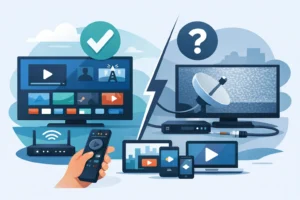
Cable usually fails in the same two ways – it costs too much, and you still end up switching between apps to find the game, the movie, or the local channel you actually want. If you’re searching for how to set up IPTV, the good news is that the process is much easier than most people expect. In most cases, you’re only a few steps away from watching live TV, sports, movies, and series on the device you already own.
The key is getting the setup right the first time. IPTV is simple when you have the correct subscription details, the right app for your device, and a stable internet connection. Skip one of those pieces, and people often blame the service when the real issue is the setup.
How to set up IPTV before you install anything
Before you download an app or enter a playlist, make sure you have the basics ready. IPTV does not work like traditional cable. You’re streaming television over the internet, so your provider sends you access credentials rather than a technician with a box and a remote.
Most IPTV services give you one of three login formats: an M3U URL, Xtream Codes details, or a portal URL for STB-style apps and boxes. You need to know which one you received because the app you choose has to support that format. If your provider sends a username, password, and server URL, that’s usually for Xtream Codes. If they send a long playlist link, that’s usually M3U. If you’re using a MAG-style or STB emulator setup, you’ll likely need a portal address and sometimes a MAC-style device ID.
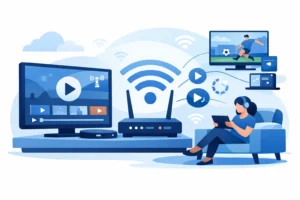
You should also check your internet speed before setup. For HD streaming, a steady connection matters more than a huge speed number, but as a baseline, 25 Mbps is comfortable for one household stream. If you’re planning to watch in 4K or run multiple devices at once, you’ll want more headroom. Wi-Fi works for many homes, but Ethernet is still the better choice for boxes and TVs that stay in one place.
Pick the right device for your IPTV setup
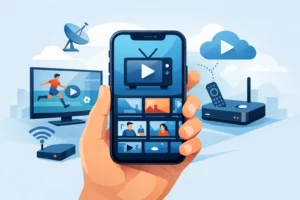
If you want the fastest setup, use the device you’re already comfortable with. IPTV works on Firestick, Android TV boxes, Smart TVs, phones, tablets, and dedicated IPTV receivers. The best option depends on how you watch.
Firestick is popular because it’s affordable and easy to install apps on. Smart TVs are convenient because there is no extra hardware, but app support varies by brand. Android boxes and Formuler-style devices give you more control and often a smoother TV-style experience. Phones and tablets are useful for testing your line or watching on the go, but they are usually a secondary screen, not the main setup.
If you want a living room experience that feels close to cable, a dedicated streaming box usually wins. If you just want fast access with no extra purchase, start with Firestick or your Smart TV.
How to set up IPTV on the most common apps
The exact screens change by app, but the process is almost always the same. Install the app, add your login details, wait for the playlist or portal to load, and then organize your categories.
Using M3U playlist details
If your provider gave you an M3U URL, open an IPTV player that supports playlists. After installation, choose the option to add a playlist or remote URL. Paste the full M3U link carefully. A single missed character can stop the entire setup.
Once the playlist loads, the app will usually pull in live TV, movies, and series automatically. Some apps also load an EPG, which is the TV guide. If the guide does not appear right away, give it a few minutes or refresh the app once.
M3U is flexible and widely supported, but it can feel less polished on some apps. It works well if you want broad compatibility across multiple devices.
Using Xtream Codes login
Xtream Codes is often the easier option. Instead of pasting a long playlist URL, you enter a server URL, username, and password. Many users prefer it because it is quicker to input and often organizes content more cleanly inside modern IPTV apps.
After entering the credentials, the app usually syncs the account and builds the categories. This may take a minute, especially if the package includes a large channel list and video-on-demand library. If the app asks whether to load live TV, movies, or series, enable everything you want from the start.
Using portal URL or STB setup
Portal setup is common on STB-compatible apps and certain IPTV boxes. In this case, you enter the portal address and sometimes a device identifier. This method often creates a more cable-like menu layout, which some users prefer for daily use.
The trade-off is that portal-based setup can be less flexible than standard app-based logins. It works best when the provider specifically supports STB-style devices and has given you the exact portal details required.
Device-specific setup tips
On Firestick, install a compatible IPTV player first, then enter your login format exactly as provided. Firestick works well, but performance depends on app quality and available storage. If your device feels slow, close background apps and restart it before blaming the stream.
On Smart TVs, search your TV’s app store for an IPTV player that supports your login type. Samsung and LG users often run into app limitations compared with Android-based platforms, so compatibility matters here. If your TV app feels restricted, an external streaming device may give you a better result.
On Android phones, tablets, and Android TV boxes, setup is usually the easiest because app support is broad. Enter your M3U, Xtream Codes, or portal details, then let the app sync. Android devices are a strong choice for users who want control, faster navigation, and support for more player options.
On iPhone and iPad, the process is similar, but the app selection can be narrower. Make sure the player you choose supports your provider’s login format before purchasing or installing anything.
If you’re using a Formuler box or another IPTV-focused device, setup can be even simpler because these boxes are designed around portal and IPTV app workflows. They tend to offer cleaner channel navigation, better remote control usability, and a more traditional TV experience.
Common problems after IPTV setup
Most IPTV issues are fixable without replacing your device or changing your subscription. The first problem is incorrect credentials. If your playlist will not load, double-check every character. Server URLs, usernames, passwords, and playlist links must match exactly.
The second problem is weak internet stability. A stream can buffer even when your speed test looks fine, especially on crowded Wi-Fi. If possible, move closer to the router, switch to 5 GHz Wi-Fi, or use Ethernet on your main device.
The third issue is the wrong app. Not all IPTV players handle large playlists equally well. Some are fast and stable, while others struggle with guide data, category loading, or video-on-demand sections. If the login is correct but the experience is poor, the app may be the bottleneck.
There is also the issue of overloaded settings. People often enable every category, every guide source, and every playback option at once. That can slow down older devices. A cleaner setup is usually better – load what you actually watch and hide the rest.
Best settings for a smoother IPTV experience
Once your service is running, spend five minutes cleaning it up. Turn on the built-in video player recommended by your app if it performs better on live channels. Set the EPG time zone correctly so the guide matches your region. Hide categories you never use so the menu feels faster and easier.
For sports fans, favor the app and device combination that changes channels quickly. For families, profile separation and favorites lists matter more. For multilingual or multicultural households, category organization becomes a real quality-of-life feature because huge channel libraries can get messy fast.
If your provider supports multiple connections, set up your second device properly instead of sharing one login between active streams that are not allowed on the plan. This is where choosing the right package matters. A single-device plan is fine for solo users, but busy households usually need more flexibility.
What a good IPTV setup should feel like
A proper setup should not feel technical once it’s finished. You open the app, the guide loads, the channels play quickly, and your movies and series are easy to find. That’s the standard people should expect.
If it takes constant troubleshooting to watch basic content, something is off – usually the app, the device, or the network. A strong provider paired with the right setup removes most of that friction. Services built for fast activation and broad device support, including options like PureVisionHD, are designed to get viewers from signup to watching with minimal delay.
When you’re setting up IPTV, the goal is not just to make it work. The goal is to make it easy enough that everyone in the house can use it without asking for help every night. Start with the right login details, use a device that fits how you watch, and keep the setup clean. Once that’s done, IPTV starts feeling less like a workaround and more like the reason you stopped paying for cable in the first place.