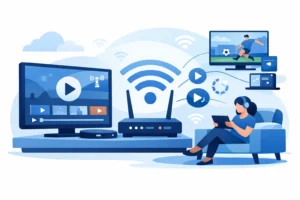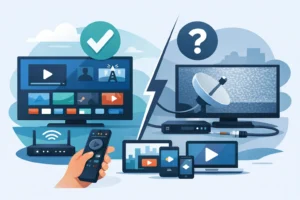
The worst time for an IPTV stream to buffer is seconds before kickoff, during overtime, or right as a movie reaches its best scene. If you want to improve IPTV WiFi, start by treating your home network as part of your TV setup. Your subscription, streaming device, router location, and the number of people online all affect what you see on screen.
A fast internet plan helps, but speed alone does not guarantee clear live TV. WiFi has to carry a steady stream from your router to your Firestick, Smart TV, Android box, Formuler device, or phone. Small changes in placement, settings, and device connections can make a major difference.
Why IPTV Buffers Even With Fast Internet
Your internet provider may advertise high download speeds, yet your IPTV app can still freeze. That usually happens because the connection between the router and the streaming device is weak, crowded, or inconsistent.
Live TV is less forgiving than scrolling social media or loading a webpage. A webpage can load in pieces. A live sports channel needs a continuous flow of data. When WiFi drops for a few seconds, the app may need to catch up, resulting in buffering, lower picture quality, or a channel that fails to load.
The issue can also be local. If the stream works perfectly on your phone near the router but struggles on the TV in a basement or back bedroom, the service is likely not the problem. The WiFi signal in that room is.
For a single HD stream, plan for at least 10 Mbps of stable available bandwidth. For 4K, 25 Mbps or more per stream is a better target. Those numbers must remain available after gaming, video calls, cloud backups, smart cameras, and other household activity take their share.
Improve IPTV WiFi by Fixing Router Placement
Router placement is one of the fastest free improvements you can make. Many routers are installed wherever the cable line enters the house: behind a TV, inside a cabinet, on a basement floor, or in a utility room. Those locations are convenient for installation, not for streaming.
Place the router in an open, elevated, central area whenever possible. Keep it away from dense walls, large metal objects, aquariums, cordless phone bases, and microwave ovens. Do not hide it in a closed entertainment unit. WiFi signals lose strength when they have to travel through several walls and furniture before reaching your IPTV device.
If your TV is far from the router, moving the router a few feet can help, but it will not solve every layout problem. Long homes, multi-floor properties, concrete construction, and finished basements often need additional coverage. In that case, a mesh WiFi system or a wired access point can be a better solution than buying a more expensive router and hoping it reaches everywhere.
Use the Right WiFi Band for Your Streaming Device
Most modern routers offer 2.4 GHz and 5 GHz WiFi bands. Some newer equipment also offers 6 GHz. The best choice depends on distance and obstacles.
The 5 GHz band is usually the better option for IPTV devices close to the router. It delivers higher speeds and tends to face less interference from older household devices. It is a strong choice for HD and 4K streaming in the living room, apartment, or nearby bedroom.
The 2.4 GHz band travels farther and passes through walls more easily, but it is often more crowded. It can be useful for a device at the edge of your home, though it may not provide the same performance for high-bitrate 4K streams. If your router combines both bands under one network name, try separating them temporarily so you can test the IPTV device on each band directly.
A 6 GHz connection can be excellent for compatible devices in the same room or nearby. Its range is shorter, so it is not automatically the best answer for a TV two floors away.
Choose Ethernet When You Can
A wired Ethernet connection remains the most dependable way to stream IPTV. It avoids wireless interference, signal loss, and congestion from other devices sharing the airwaves. If your TV box or streaming device has an Ethernet port and the router is close enough, use it.
This is especially worthwhile for viewers who watch live NFL, NBA, NHL, UFC, or other events where delays and buffering are more noticeable. It is also a smart upgrade for a main TV that runs several hours a day.
Not every device supports Ethernet directly. Some Fire TV and Android streaming devices can use a compatible Ethernet adapter. If running a cable across the home is not practical, consider a mesh node with an Ethernet port near the TV. The node still connects wirelessly to the network, but it can provide a more stable local connection to the IPTV box.
Powerline adapters are another option, sending network data through electrical wiring. They can work well in some homes, but performance depends heavily on the age and layout of the electrical system. Test them before relying on them for your primary TV.
Reduce Network Competition During Live TV
A busy network can make a good IPTV service look unreliable. During peak evening hours, several devices may be streaming, downloading, gaming, or backing up photos at once. The result is not always a total outage. More often, it is random buffering that appears only when the household is active.
Start by checking for large downloads and automatic updates. Game consoles, computers, phones, and smart TVs may update in the background without warning. Pause large downloads before an important game or movie night.
If your router includes Quality of Service, often called QoS or device prioritization, assign priority to your main streaming device. This tells the router to protect video traffic when the network is busy. The feature is not magic – it cannot create bandwidth your plan does not have – but it can prevent one download from disrupting the TV.
Also look at the number of active devices. A multi-device IPTV plan gives your household flexibility, but every stream still needs network capacity. Two HD TVs, one 4K TV, a video call, and online gaming can put real pressure on an entry-level internet plan and an older router.
Update the Hardware Before Blaming the App
An aging router may be the bottleneck. Routers from several years ago can struggle with modern homes full of phones, laptops, cameras, speakers, consoles, and streaming devices. They may have adequate internet speed on paper but poor handling of many simultaneous connections.
Upgrade your router if you notice weak range, frequent disconnects, overheating, or a major slowdown whenever several people are online. Look for a current dual-band or tri-band model designed for multiple devices. For larger homes, choose a mesh system rather than expecting one router to cover every room equally.
Your IPTV device matters too. Low-storage streaming sticks can become slow when they are packed with unused apps, cached files, and automatic updates. Restart the device, clear the app cache when appropriate, remove apps you no longer use, and make sure the operating system is current. A well-maintained device loads channels faster and holds a steadier connection.
Use this quick check when performance drops:
- Restart the modem, router, and IPTV device in that order.
- Test the IPTV app near the router to separate a WiFi issue from a service issue.
- Switch from 2.4 GHz to 5 GHz, or test an Ethernet connection.
- Pause downloads, gaming updates, and cloud backups.
- Check whether the problem affects every channel or only one stream.
If every device in the home is slow, contact your internet provider. If only one TV has trouble, focus on its WiFi signal, streaming hardware, and local network settings.
Set Up a Better IPTV Streaming Zone
Your main viewing area deserves the strongest connection in the home. Put the router or mesh node where the signal can reach that TV cleanly. Keep the streaming device in open air rather than squeezed behind a television, where heat and WiFi interference can build up.
For homes with a basement entertainment room, a dedicated mesh node or wired access point is often the practical answer. Extenders can help in a small dead zone, but cheap single-band extenders may cut available speed and introduce extra delay. A proper mesh system costs more, yet it is typically a better long-term choice for multiple TVs and 4K viewing.
PureVisionHD customers using compatible devices can get the best experience by pairing a stable network with a capable IPTV box or streaming device. Instant activation is valuable, but dependable home WiFi is what keeps the experience strong night after night.
Before the next big game, test your stream when the house is busy, not only when everyone else is offline. That real-world test will show exactly where your setup needs attention – and a few targeted fixes can keep your screen focused on the action instead of a loading circle.