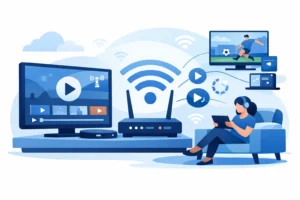
A Formuler box is built for people who want live TV, sports, movies, and series without fighting with complicated apps every time they sit down to watch. Once the box is connected and your IPTV credentials are loaded, it delivers a fast, remote-friendly TV experience that feels much closer to cable – without the cable bill.
Knowing how to set up Formuler box correctly from the start matters. A few minutes spent on your network, software update, and portal details can prevent buffering, missing channels, and login errors later.
What You Need Before You Start
Set up the hardware near your TV with access to a stable internet connection. In the box, you should have the Formuler device, power adapter, HDMI cable, remote, and batteries. Connect the HDMI cable from the Formuler box to an available HDMI port on your television, then switch the TV input to that same HDMI number.
You will also need an active subscription from an authorized IPTV provider. Depending on the service, the provider may send a portal URL, a username and password, an Xtream API login, or request the MAC address of your Formuler box before activating it. Keep that email or message open on your phone so you can enter the information exactly as provided.
For the best experience, use a wired Ethernet connection whenever possible. Ethernet is the simplest way to get reliable HD and 4K streaming, especially in homes where several people use Wi-Fi at the same time. If running a cable is not practical, connect to a strong 5 GHz Wi-Fi network rather than a slower 2.4 GHz network.
How to Set Up Formuler Box Step by Step
Connect the box and complete the first boot
Plug the Formuler box into power and turn on your TV. Insert the remote batteries, then press the power button. The first screen usually asks you to choose a language, region, and display settings. Select the options that match your TV and preferences.
If your television supports 4K, the Formuler box may detect it automatically. Leave the resolution on Auto at first. Forcing a high resolution on an older TV can cause a blank screen or unstable picture. You can adjust video output later in the device settings once everything is working.
Get the internet connection right
When the network screen appears, choose Ethernet if you connected a cable. The device should connect automatically. For Wi-Fi, select your home network, enter the password carefully, and wait for the confirmation message.
Before adding IPTV service details, test that the box has internet access. Open a basic app or run the network test in Settings if your model includes one. If the connection drops now, solve that issue first. IPTV performance depends on both your provider and the quality of your home network.
Update the Formuler software
Open Settings and look for Software Update, System Update, or Update & Recovery. Install any available update before entering your service details. Updates can improve app stability, remote performance, video playback, and compatibility with newer portal systems.
Do not unplug the box while an update is installing. The process usually takes only a few minutes, but interrupting it can create avoidable startup problems. When the device restarts, return to the home screen and confirm that the network is still connected.
Add Your IPTV Portal or Login Details
Most Formuler models use the MyTVOnline application. The exact menu name can vary by model and software version, but the process is similar: open MyTVOnline, select Add Portal or Add Service, and choose the connection method supplied by your provider.
If your provider uses a portal connection, enter the portal name and portal URL exactly as received. Watch for missing letters, extra spaces, and incorrect punctuation. A single typo can stop the connection from loading. Some providers also need the device MAC address to activate your account. You can normally find this inside the MyTVOnline portal screen or under the device information menu.
If you receive an Xtream-style username, password, and server address, select the appropriate login option and enter each field carefully. Do not substitute a website address for the server URL unless your provider specifically tells you to do so. These are often different addresses.
After saving the connection, allow the box time to download the channel list, guide data, video-on-demand library, and series categories. Large packages can take a few minutes on the first load. Avoid pressing back repeatedly while the content is populating.
If you use PureVisionHD, enter only the activation information provided with your subscription and make sure the correct device is authorized for your plan. This keeps activation fast and prevents a device-limit conflict.
Set Up the Features You Will Actually Use
Once your channels appear, spend a few minutes customizing the interface. This makes a major difference when your service includes thousands of live channels and large movie libraries.
Start by creating favorites for the channels you watch most. Put local stations, sports channels, kids programming, news, and international channels in a simple order that works for your household. Favorites save time and keep the guide from feeling overwhelming.
Next, check the electronic program guide. If guide information is missing immediately after setup, give the box a little time to sync. You can also refresh the portal or restart MyTVOnline. Guide data is separate from the video stream, so a channel may work even when its schedule has not loaded yet.
Explore the settings for parental controls if children use the TV. You can protect adult categories and restrict purchases or settings changes with a PIN. It is also smart to set the correct time zone, since this affects the program guide and any catch-up features offered by your provider.
Improve Picture Quality and Reduce Buffering
A Formuler box can produce excellent HD and 4K playback, but the best settings depend on your TV, internet plan, and home network. Start with Auto resolution and enable automatic frame rate switching if your model supports it. This can make sports and motion-heavy content look more natural on compatible TVs.
For audio, use HDMI passthrough only if your soundbar or receiver supports the format. If you get no sound after enabling passthrough, switch back to PCM or Auto. The goal is reliable audio, not the most complicated setting menu.
Buffering is usually not fixed by changing random box settings. First, use Ethernet or move closer to your Wi-Fi router. Then pause downloads, gaming updates, and other heavy activity on the network. Restart the modem, router, and Formuler box in that order if the problem continues.
A speed test can help, but consistency matters as much as headline speed. A stable connection with low congestion is better for live TV than a fast connection that repeatedly drops. If only one channel buffers while everything else works, the issue may be specific to that stream rather than your Formuler box.
Common Formuler Box Setup Problems
If you see “portal cannot be reached,” confirm that the internet works and recheck the portal URL character by character. Do not add spaces before or after the address. If the provider registered your device by MAC address, confirm that you sent the MAC address from the correct MyTVOnline app and correct box.
If channels load but show a black screen, restart the device and test several channels. One unavailable channel does not always mean the full service is down. If every channel fails, verify that your subscription is active and that your plan supports the number of devices currently in use.
If the remote does not respond, replace the batteries and make sure there is a clear line of sight to the box if your remote uses infrared. Some Formuler remotes pair through Bluetooth, so check the Bluetooth or remote settings after a factory reset.
If the screen is blank after startup, switch the TV to the correct HDMI input. If that does not work, try another HDMI cable or temporarily connect the box to a different TV. A resolution mismatch can also cause this issue, especially after moving the box between an older TV and a 4K display.
Avoid factory resetting the box unless basic troubleshooting fails. A reset removes portal details, network settings, favorites, and custom preferences. It can solve stubborn software issues, but it also means you will need to complete the setup again.
Your Formuler box should feel simple after day one: turn on the TV, open your favorites, and watch. Keep the software current, use a strong network connection, and save your activation details somewhere secure so changing TVs or restoring the device never becomes a major project.