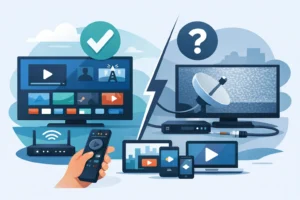
A good IPTV service can be ready in minutes, but one wrong portal address or MAC address can leave you staring at a blank screen. This stb emulator setup guide shows you how to connect an authorized IPTV subscription to STB Emulator, set the right device profile, and get live TV, sports, movies, and series playing without unnecessary troubleshooting.
STB Emulator recreates the familiar set-top-box experience on supported Android devices. It is a popular choice for viewers who want a simple TV-style interface rather than a standard playlist app. Once configured correctly, it gives you an easy way to browse channels, open the guide, manage favorites, and watch on a larger screen.
What You Need Before You Start
Have your Android TV box, Android phone or tablet, Fire TV device, or compatible smart-TV setup ready. STB Emulator works best on devices with stable internet, enough available storage, and current software. For live HD and 4K viewing, use a strong home connection whenever possible. Ethernet is the best option for a fixed TV box, while a reliable 5 GHz Wi-Fi connection is usually enough for most households.
You will also need the portal URL supplied by your IPTV provider and the MAC address generated inside STB Emulator. Do not guess, copy an old portal from another device, or use credentials from an unapproved source. A portal is tied to the subscription and device authorization, so accuracy matters.
If your provider asks for a device ID, serial number, or screenshot of the MAC address, send exactly what appears in the app. Activation is often fast, but the provider must register the correct virtual device before channels can load.
Install STB Emulator on Your Device
Install the STB Emulator app from the official app store available for your device. On Fire TV and certain Android TV boxes, availability can vary by region and device software. If you are installing an app outside the standard store, only use a legitimate source and understand your device security settings before proceeding.
After installation, open the app once and allow it to initialize. You may see a default portal or demo screen. That is normal. Do not expect channels to load until your own portal profile is configured and activated.
For the best living-room experience, use a Bluetooth remote, the remote included with your Android box, or a compatible air mouse. Touch controls work on a phone or tablet, but STB Emulator is designed around directional buttons and an OK or Enter key.
STB Emulator Setup Guide: Create Your Portal
From the STB Emulator home screen, open Settings. Depending on the version, you may need to press and hold the center or OK button to access the settings menu. Find Profiles and select the default profile, or create a new one if you want to keep separate services organized.
Open Portal Settings, then enter the portal URL provided with your subscription. Type it exactly as supplied, including any required http or https prefix, path, numbers, and ending characters. A single missing character can cause a connection error.
Avoid adding extra spaces before or after the address. Also, do not substitute a web address from a provider’s main website for the portal URL. The portal address is a specific server endpoint created for compatible STB devices.
Once the portal URL is saved, return to the profile settings. Look for STB Model or Device Model. MAG 250, MAG 254, and MAG 256 are common profile options, but the correct choice depends on your provider. If no model is specified, MAG 250 or MAG 254 is often a practical starting point. If channels load but the interface behaves poorly, ask support which model they recommend before changing several settings at once.
Find and Submit Your MAC Address
Every STB Emulator profile has a virtual MAC address. In the profile settings, open STB Configuration or MAC Address and copy the value shown. It usually follows this format: 00:1A:79:XX:XX:XX.
Send that MAC address to your IPTV provider for activation. The provider links it to your subscription, which allows the portal to recognize your device. Some services activate instantly, while others may require a short processing window. Restart the app after you receive confirmation that the MAC address is active.
Do not change the MAC address after activation unless your provider tells you to. Changing it creates a different virtual device and can cause an authorization error. If you need to move your subscription to another device, contact support first so the existing registration can be updated properly.
Adjust the Settings That Affect Playback
Most viewers do not need to modify every advanced menu. Start with the settings that make a real difference: video output, buffering, and remote behavior.
Set your device display resolution to match your television. A 4K TV can display 4K content, but higher resolution does not fix a weak connection. If a stream buffers regularly, test a lower output resolution or use Ethernet before assuming the service is the problem.
In STB Emulator, leave buffer settings at their default values initially. A larger buffer can help on inconsistent Wi-Fi, but it also means a longer delay when switching channels. For sports fans, that trade-off matters. Lower delay feels more live, while a slightly larger buffer can be more forgiving when the network is busy.
Enable hardware acceleration if your device supports it and playback is stable. Older TV boxes may perform better with a different decoder setting, especially when opening high-bitrate HD channels. Change one option, test several channels, and keep the setting that provides the cleanest playback.
Start the Portal and Test the Right Channels
Exit settings and restart STB Emulator. The app should connect to the portal and load the channel categories, electronic program guide, and available on-demand sections. The first load can take longer than normal because the app is downloading channel and guide information.
Test more than one channel before judging performance. Open a local live channel, a sports channel, and a movie or series title if your plan includes on-demand content. This quickly tells you whether the issue is isolated to one stream or affects the entire connection.
Build a favorites list once everything is working. For a household with different viewing habits, favorites save time and make the service feel closer to a traditional cable box. Add sports, local channels, news, kids programming, and frequently watched international channels instead of scrolling through a large lineup every night.
Fix Common STB Emulator Problems
A portal loading error usually comes down to an incorrect portal URL, an unactivated MAC address, or a temporary network issue. Recheck the URL character by character, confirm the registered MAC address with your provider, then restart both the app and your internet device.
If the app opens but channels show a black screen, first test other channels. If every channel fails, restart the device and check your connection speed. If only selected channels fail, the provider may be updating that source. Avoid repeatedly changing models, portal settings, and decoder options at the same time. That makes the real issue harder to identify.
If the guide does not populate, give the portal a few minutes after the first login. A full app restart can also help. For persistent guide or authentication issues, contact your provider with the MAC address, device type, and a clear description of what appears on screen. That information helps support resolve the issue faster.
Get More From Your IPTV Setup
STB Emulator is best for viewers who prefer the familiar feel of a cable-style receiver, especially on a dedicated Android box. It may not be the best fit for every device. A native IPTV app can be more convenient on a phone, while a Formuler-style box may offer a more polished remote-first experience for a primary television.
For households that watch live sports, local programming, movies, and series across multiple rooms, choose a subscription that supports the number of simultaneous devices you actually use. A second stream is useful when one person is watching a game and another is using on-demand content, but it is not the same as simply installing the app on a second device.
PureVisionHD customers can use their authorized portal details with compatible STB setups and get support when a profile, MAC address, or device setting needs attention. Once your portal is active and your favorites are organized, STB Emulator turns a compatible device into a straightforward, remote-friendly way to watch the content your household actually wants.